Why Automated Testing Matters
You’ve built a website. It works in your browser. But does it work for everyone? That’s where accessibility audits come in. They’re not optional — they’re how you verify that your site’s actually usable.
Lighthouse and axe are the two most popular tools for catching accessibility issues automatically. They don’t find everything (human testing still matters), but they’ll flag about 60% of problems right away. That’s a solid starting point.
Quick Fact
About 1 in 4 internet users have some form of disability. Automated testing helps you reach them.
Getting Started with Lighthouse
Lighthouse is built into Chrome DevTools. You don’t need to install anything. Open your page in Chrome, press F12, click the “Lighthouse” tab, and run an audit. It’s that simple.
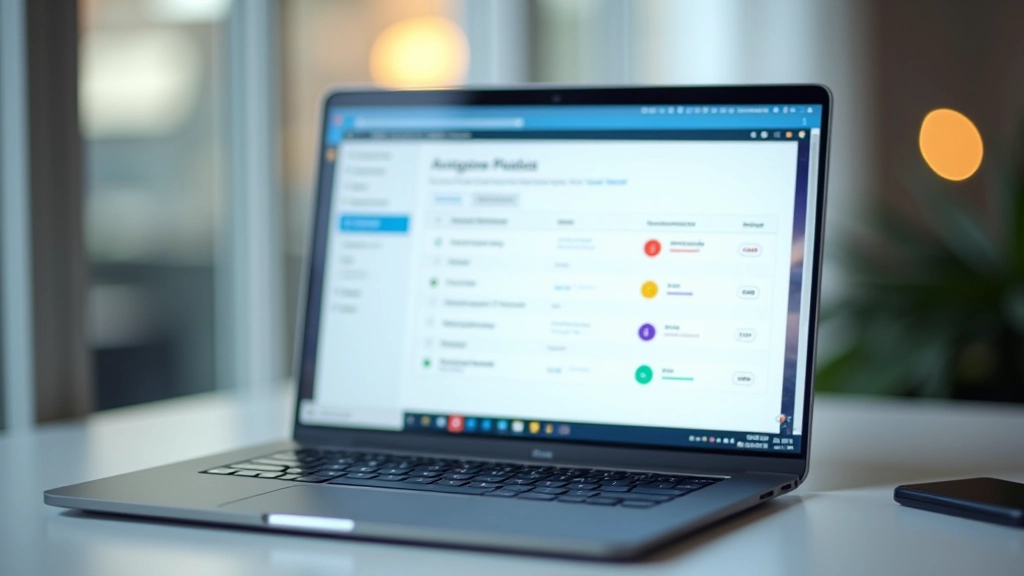
What you’ll get back is a score (0-100) plus a detailed report. The accessibility section covers things like color contrast, button labels, form inputs, and heading hierarchy. Each issue comes with a severity level — critical, serious, moderate, or minor.
The real value is in the “How to fix” section. Lighthouse doesn’t just tell you there’s a problem — it explains what’s wrong and suggests a solution. You’ll see code examples. You’ll learn the why, not just the what.
Pro Tip
Run Lighthouse on your homepage, key landing pages, and a sample of internal pages. Different sections sometimes have different issues.
Going Deeper with axe
Lighthouse catches the basics. For more thorough testing, you’ll want axe. It’s available as a browser extension or you can run it from the command line if you’re automating tests.
axe finds issues Lighthouse misses. It’s stricter. You might run Lighthouse and get a score of 85, then run axe and discover 20 additional violations. That’s not a failure — it’s just different tools with different scopes.
The real power? You can integrate axe into your CI/CD pipeline. That means accessibility testing happens automatically on every code commit. Developers catch issues before they reach production.
- Catches ARIA attribute errors
- Validates heading structure
- Checks color contrast ratios
- Tests keyboard navigation paths
Common Issues You’ll Find
Most accessibility problems fall into a few categories. Once you’ve seen them once, you’ll recognize them everywhere.
Missing Alt Text
Images without alt attributes. Both tools flag this immediately. The fix is simple — add meaningful alt text that describes what the image shows. Not “image1.jpg” but “Developer reviewing code on monitor.”
Insufficient Contrast
Light gray text on white background. WCAG AA requires at least 4.5:1 contrast ratio for normal text. Lighthouse measures this automatically. You’ll see exactly which elements fail and what the actual ratio is.
Unlabeled Form Fields
A text input with no label tag. Screen readers can’t tell users what the field is for. Every input needs an associated label element or an aria-label attribute.
Your Testing Workflow
Here’s how experienced developers approach accessibility testing. You don’t need to do it exactly this way, but this flow catches most issues.
Run Lighthouse First
Start with Lighthouse. It’s quick and gives you an immediate score. Fix the obvious issues — missing alt text, contrast problems, empty button labels. These are usually straightforward.
Install axe and Go Deeper
Once Lighthouse passes, run axe. You’ll probably find additional violations. Work through them systematically. Read the documentation for each violation type.
Test with a Real Screen Reader
Automated tools miss things. Spend 15 minutes with NVDA (free, Windows) or VoiceOver (built into Mac). Listen to how your page sounds. You’ll find issues no tool catches.
Test Keyboard Navigation
Close your trackpad. Use only Tab, Shift+Tab, Enter, and arrow keys. Can you navigate the entire page? Can you see where focus is? If focus disappears or skips elements, you have a problem.
Important Note
Automated testing tools find about 60% of accessibility issues. They’re essential, but they’re not sufficient on their own. You’ll still need manual testing with assistive technologies and real users with disabilities. Think of these tools as a first line of defense, not a complete solution. WCAG compliance requires a combination of automated testing, manual testing, and user testing.
Making Accessibility Part of Your Process
Lighthouse and axe aren’t perfect, but they’re powerful. They catch real problems that real people face. More importantly, they make accessibility testable. You can measure it. You can track improvements.
Start small. Run Lighthouse on your homepage. Fix the critical issues. Then move to other pages. Over time, you’ll build a more accessible site. Your users — all of them — will notice.
The best time to start was yesterday. The second-best time is today. These tools are free. Your site’s accessibility is worth the effort.